AppLovin

Overview - Click Tracking
Rockerbox tracks AppLovin traffic using URL parameters added directly within the platform. Applovin allows users to automatically configure parameters in their UI.
Step 1: Configure Rockerbox as Your Measurement Provider
When creating or editing a campaign, click "Edit" next to the tracking parameters
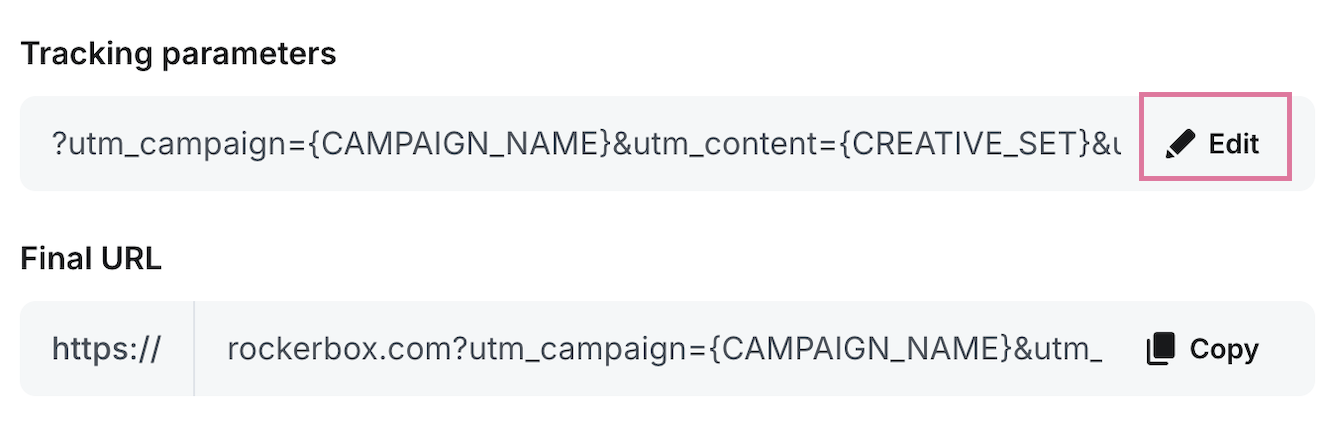
Then select "Rockerbox" as your measurement provider - this will automatically add all of the required tracking parameters.
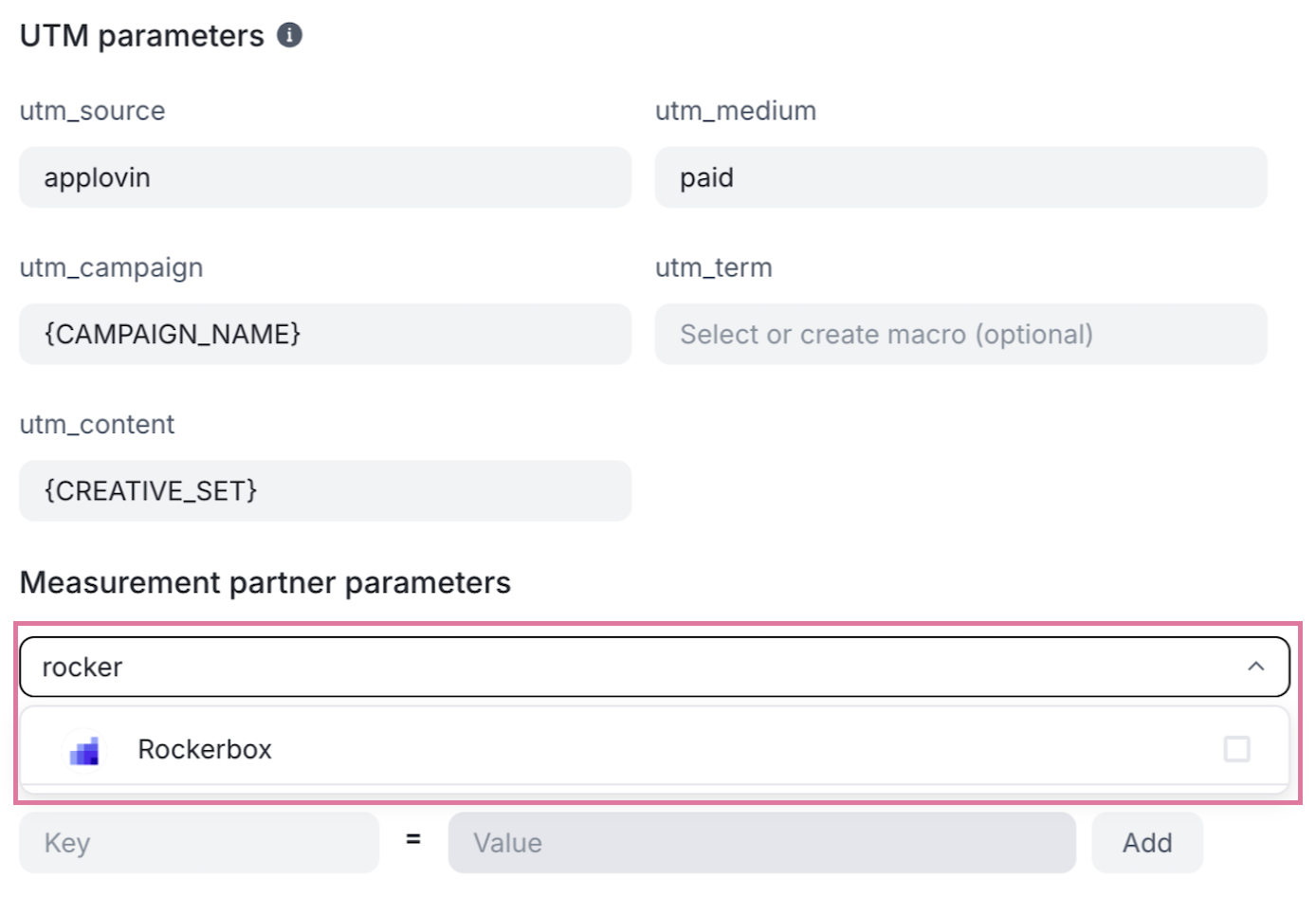
To verify that, you should see the following parameters in the final URL section after confirming:
?utm_campaign={CAMPAIGN_NAME}&utm_content={CREATIVE_SET}&utm_medium=paid&utm_source=applovin&al_campaignid={CAMPAIGN_ID}&al_campaignname={CAMPAIGN_NAME}&al_creativesetid={CREATIVE_SET_ID}&al_creativeset={CREATIVE_SET}&al_adtype={AD_TYPE}&al_country={CC}Parameter Reference
Parameter | Value / Macro | Description |
utm_source | applovin | Identifies AppLovin as the traffic source |
utm_medium | paid | Identifies paid media traffic |
utm_campaign | {CAMPAIGN_NAME} | AppLovin campaign name |
utm_content | {CREATIVE_SET} | AppLovin creative set name |
al_campaignid | {CAMPAIGN_ID} | AppLovin campaign ID |
al_campaignname | {CAMPAIGN_NAME} | AppLovin campaign name |
al_creativesetid | {CREATIVE_SET_ID} | AppLovin creative set ID |
al_creativeset | {CREATIVE_SET} | AppLovin creative set name |
al_adtype | {AD_TYPE} | Placement type (INTER or REWARDED_INTER) |
al_country | {CC} | User country code |
Once configured, these parameters will automatically populate with AppLovin values during click tracking.
Step 2: Validate Destination URLs
Before launching, confirm that your destination URLs:
- Point to a Rockerbox-tracked website
- Are properly formatted and load correctly
- Do not use URL shorteners (such as bit.ly)
Step 3: Notify Rockerbox
Email support@rockerbox.com with:
- The channel name ("AppLovin")
- Your planned launch date
- Desired tier structure
- Confirmation that tracking parameters have been configured
Step 4: Confirm Tracking
After launch, allow approximately one day for data collection, then verify that:
- AppLovin appears Advertising Platforms page
- Applovin attribution appears in the Cross Channel Attribution report
If data is missing or incomplete, review the requirements below and contact Rockerbox Support if needed.
Reporting on Spend
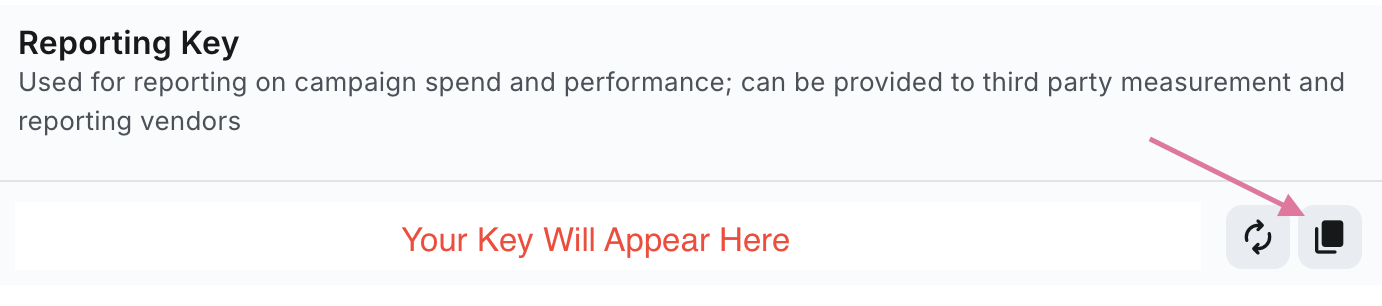
Step 1: Retrieve your Reporting API Key
Log in to your AppLovin account and locate your API key. Rockerbox uses this key to securely access campaign spend and performance data through the AppLovin Reporting API.
Click your account, and then Keys
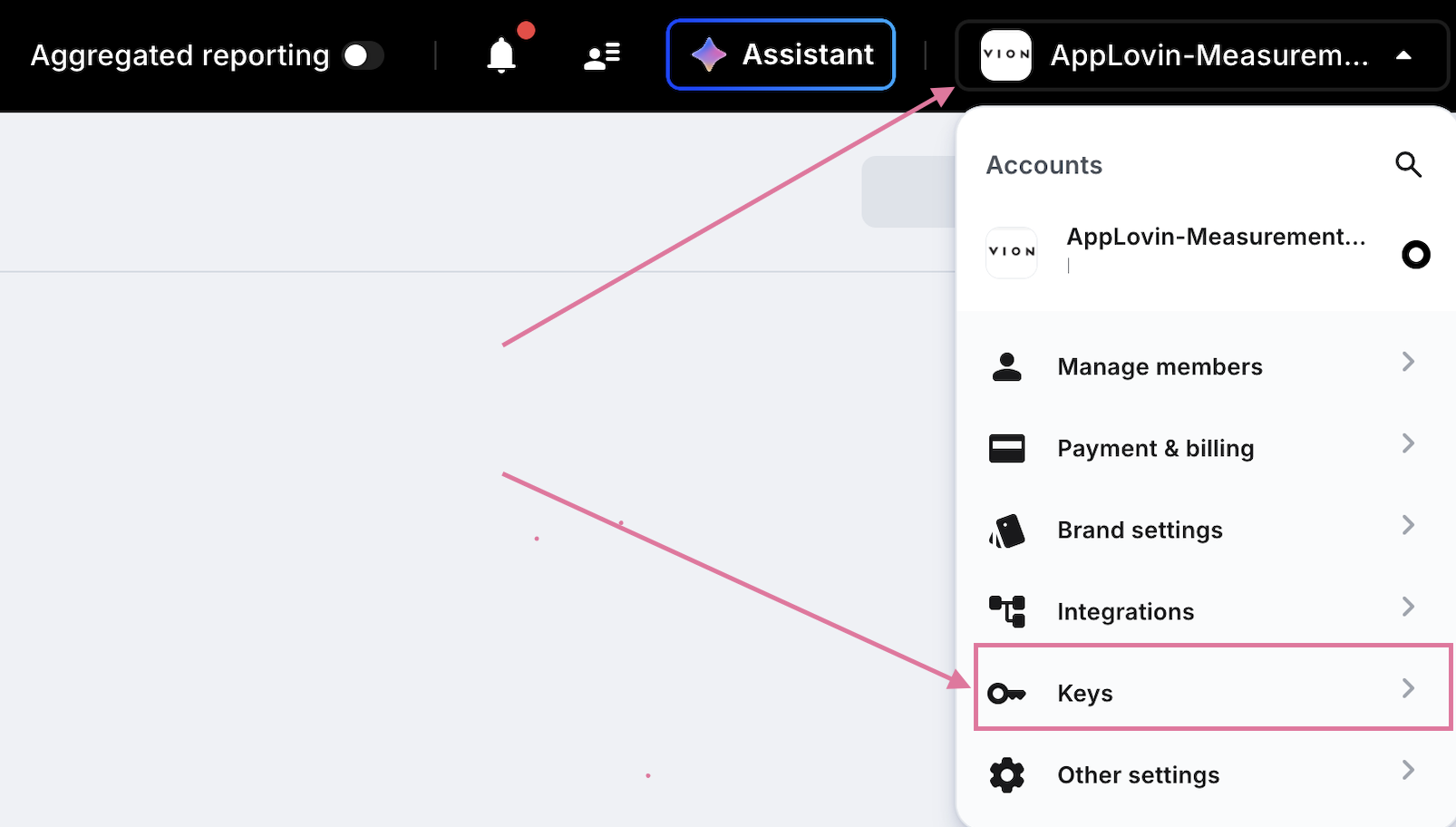
Copy and paste your Reporting API key somewhere - you'll need it for the next step.
Step 2: Connect AppLovin in Rockerbox
In the Rockerbox dashboard, navigate to Advertising Platforms search for "Applovin". Enter your AppLovin API key to authorize the integration.
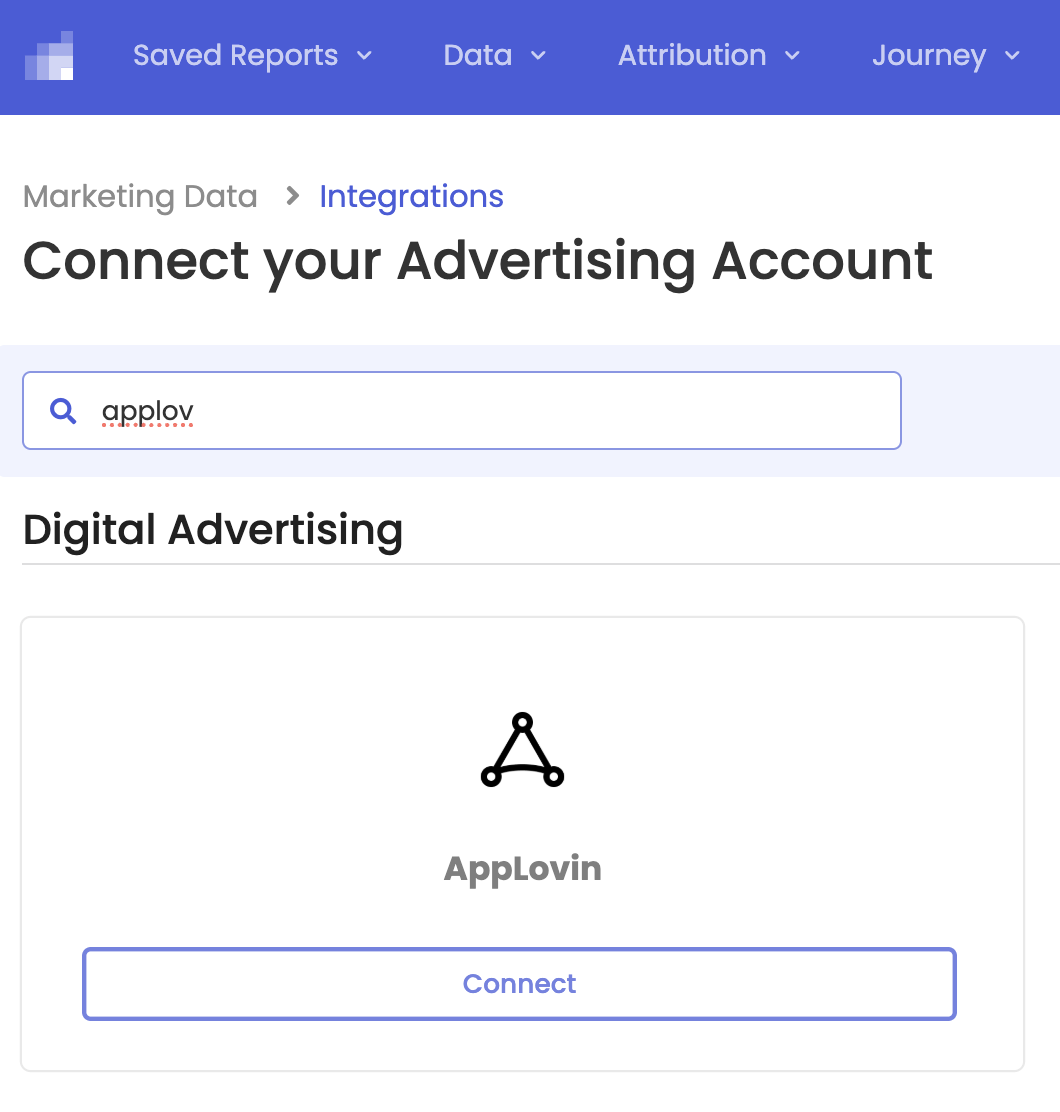
Enter your account details and click "Connect Account"
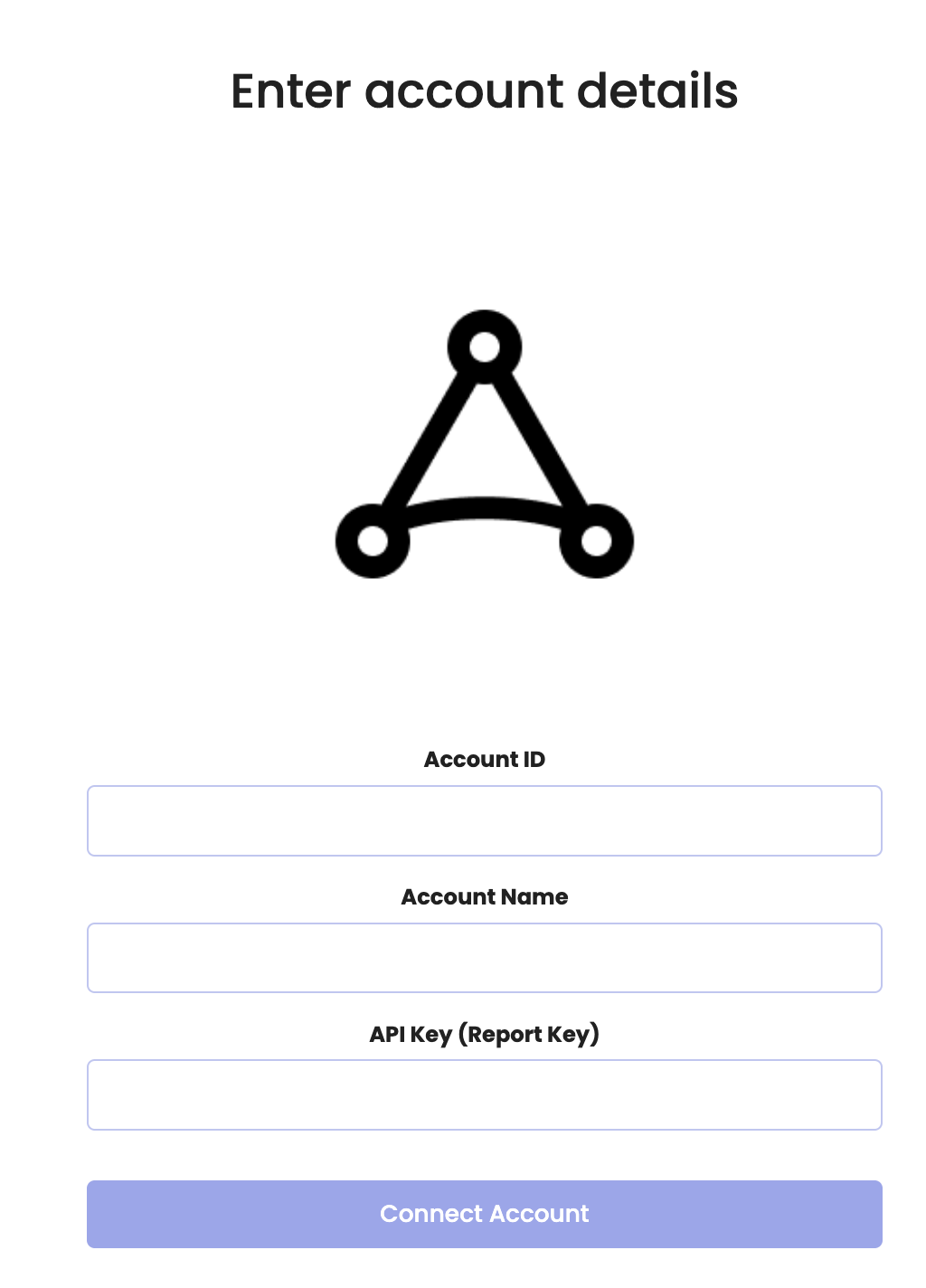
Once connected, Rockerbox will begin pulling daily spend data from AppLovin.
Viewthrough Integration
Looking to track more than clicks for AppLovin? Please check out the AppLovin - Viewthrough page.